

How to Connect to Kusama
Using Public Endpoint
You can connect to kusama using Blockops public API endpoints. These endpoints are only suitable for testing. Public RPC endpoints are not intended for dApp building. (Throughput rate limited to 50 rps).We have different rate limits set for private API endpoints (e.g. ones with API keys attached) - Read more below
- Https
- Websocket
Using Private Endpoint
Using API keys on an RPC node provides better tracking and monitoring of API usage. Secure your data, speed up your queries, and take control of your API usage with our RPC API endpoint and personalized API keys. Sign up now to get your own API key. To get your API key, create a project using a unique Identifier as the project name and select Kusama from the network options.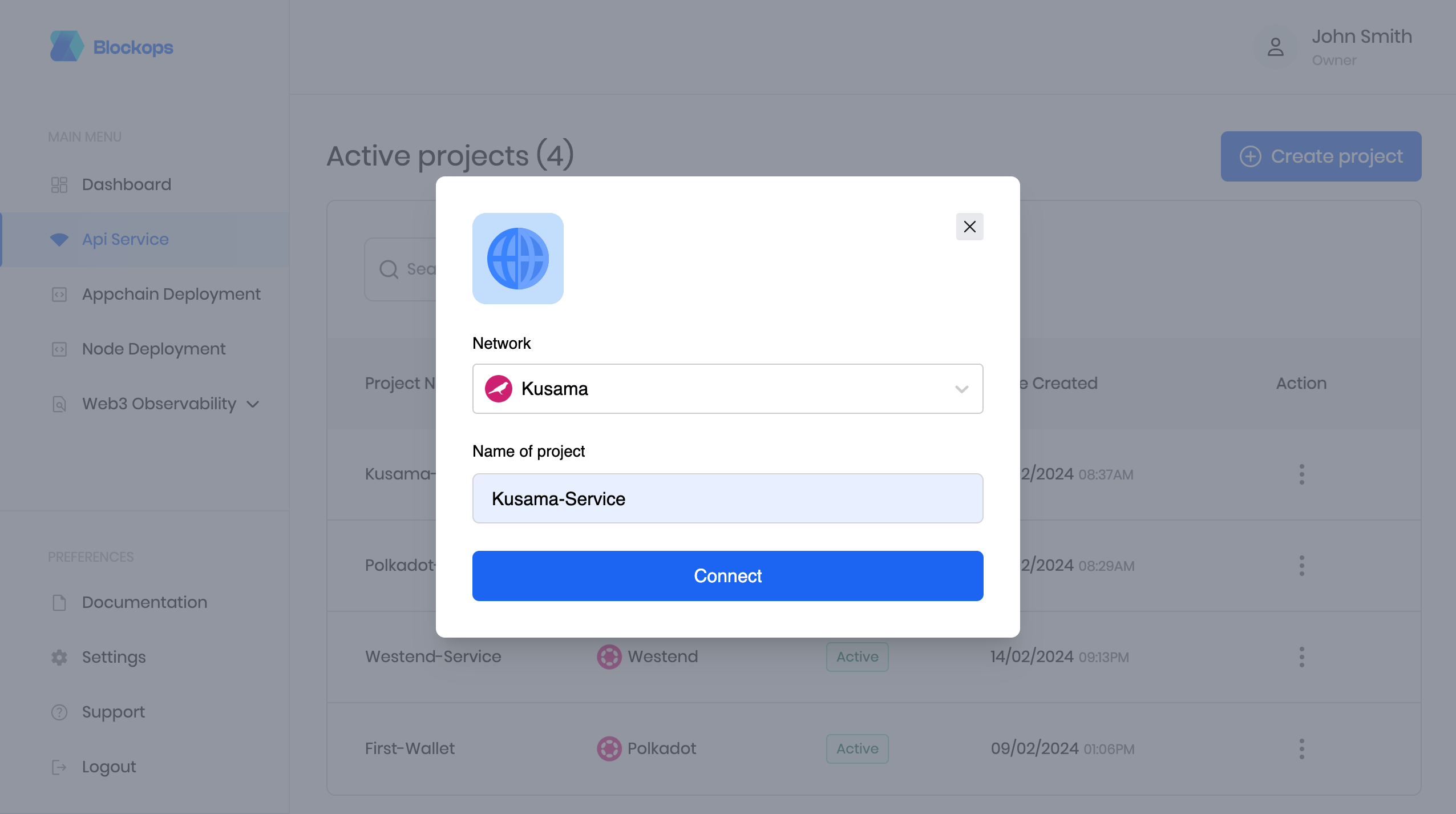
Create a Kusama project
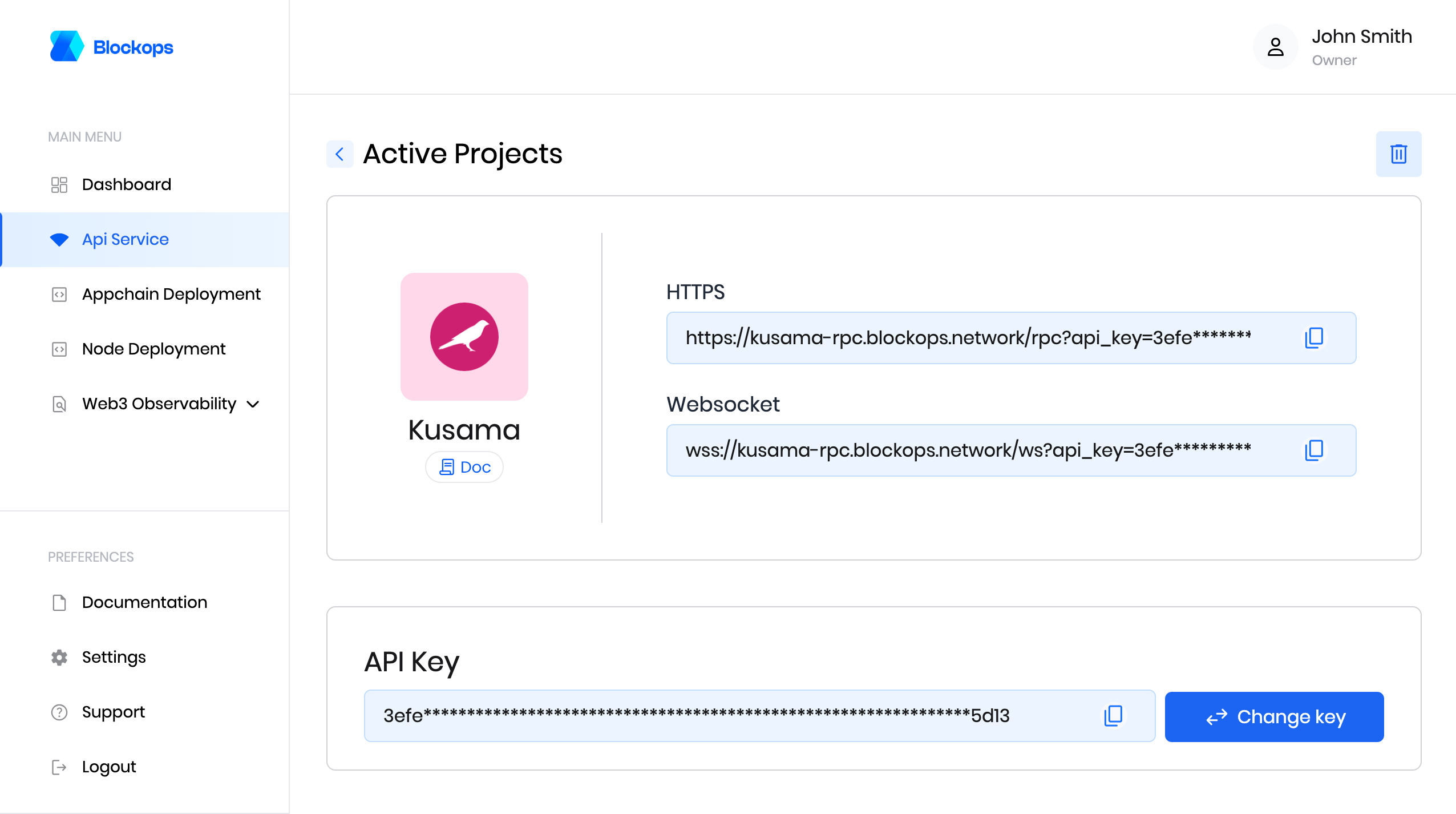
view Kusama project
Send requests
All requests are
POST requests.- Adding the API key as a query string
?api_key=${APIKEY} - Or the request header
-H 'authorization: APIKEY ${APIKEY}'
- Download wscat from https://www.npmjs.com/package/wscat
- Install wscat by running the following command:
npm install -g wscat
For more information on the Kusama network, please see the official Kusama developer documentation.